
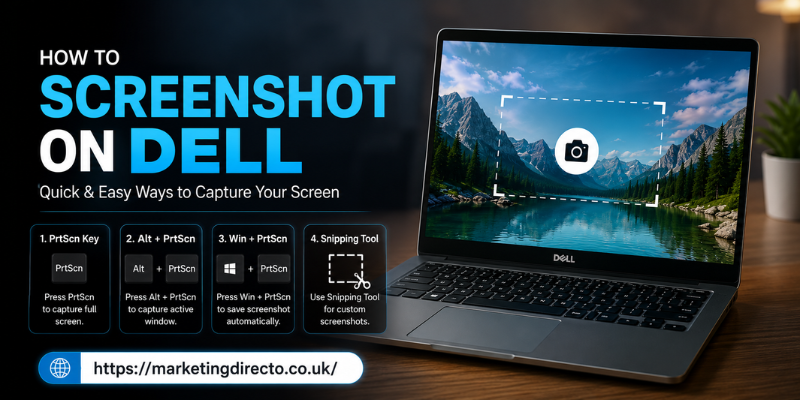

If you’re wondering how to screenshot on Dell, you’re in the right place. Whether you own a Dell laptop or desktop, taking screenshots is simple once you know the right methods. Screenshots are useful for saving important information, sharing errors, creating tutorials, or keeping memorable moments from your screen. This guide explains every easy way to capture your screen on a Dell computer, even if you’re a beginner.
How to Screenshot on Dell Using the Print Screen Key
The easiest way to take a screenshot on a Dell computer is by using the Print Screen (PrtSc) key.
Here are the most common options:
- Press PrtSc to copy the entire screen to your clipboard. Open Paint, Word, or another application and press Ctrl + V to paste the screenshot.
- Press Windows + PrtSc to capture the full screen and automatically save it in the Pictures > Screenshots folder.
- Press Alt + PrtSc to capture only the active window instead of the entire display.
These shortcuts work on most Dell laptops and desktop PCs running Windows.
Take a Screenshot on Dell with the Snipping Tool
The built-in Snipping Tool is perfect when you want more control over your screenshots.
Follow these simple steps:
- Open the Snipping Tool from the Start menu.
- Click New.
- Select the area you want to capture.
- Edit the screenshot if needed.
- Save or share the image.
The Snipping Tool allows you to capture:
- Rectangular areas
- Free-form selections
- Active windows
- Full-screen screenshots
It’s an excellent option for work, school, or creating tutorials.
Capture Screenshots on Dell with Snip & Sketch
Windows also includes Snip & Sketch, which offers a quicker screenshot experience.
Simply press:
Windows + Shift + S
Your screen will dim, and you’ll see several capture options:
- Rectangle Snip
- Freeform Snip
- Window Snip
- Fullscreen Snip
The screenshot is copied to your clipboard, and a notification lets you edit or save it immediately.
This method is one of the fastest ways to learn how to screenshot on Dell efficiently.
How to Screenshot on Dell Without the Print Screen Button
Some Dell laptops have compact keyboards where the Print Screen button may be combined with another key.
Try these combinations:
- Fn + PrtSc
- Fn + Windows + Space
- Windows + Shift + S
If none of these work, search for Snipping Tool from the Windows Start menu.
You can also use the On-Screen Keyboard to access the Print Screen key if your physical keyboard isn’t working.
Save and Edit Dell Screenshots Like a Pro
After taking a screenshot, you may want to improve it before sharing.
Useful editing options include:
- Crop unnecessary parts
- Highlight important information
- Blur sensitive details
- Add arrows or text
- Resize the image
Free tools such as Paint, Photos, or Microsoft Paint 3D make basic editing simple.
For advanced editing, software like Photoshop or Canva offers additional features.
Common Screenshot Problems on Dell and Their Solutions
Sometimes screenshots don’t work as expected.
Here are a few common issues and fixes.
Print Screen Key Isn’t Working
- Restart your computer.
- Update your keyboard drivers.
- Try using the Fn key with PrtSc.
- Use the Snipping Tool instead.
Screenshot Isn’t Saving
If you’re using PrtSc, remember it only copies the image to your clipboard.
To save automatically, use:
Windows + PrtSc
Screenshot Folder Is Missing
Open File Explorer and check:
Pictures > Screenshots
If the folder doesn’t exist, Windows usually creates it after the first successful screenshot.
Keyboard Shortcut Doesn’t Respond
Check if another application has disabled the shortcut or if your keyboard settings have changed.
Restarting Windows often resolves temporary issues.
Best Method to Screenshot on Dell for Different Needs
Different situations require different screenshot methods.
- Entire screen: Windows + PrtSc
- Current window: Alt + PrtSc
- Selected area: Windows + Shift + S
- Detailed editing: Snipping Tool
- Quick sharing: Clipboard with PrtSc
Choosing the right method saves time and improves productivity.
FAQs
How do I screenshot on a Dell laptop without using the Print Screen key?
You can press Windows + Shift + S to open the Snipping Tool interface and capture any part of your screen without using the Print Screen button.
Where are screenshots saved on a Dell laptop?
When using Windows + PrtSc, screenshots are automatically stored in the Pictures > Screenshots folder. Screenshots taken with PrtSc alone are copied to the clipboard until you paste and save them.
Why is my Dell screenshot shortcut not working?
The issue may be caused by keyboard settings, outdated drivers, or a disabled shortcut. Restarting your PC, updating drivers, or using the Snipping Tool usually fixes the problem.
Can I take a screenshot of only one window on Dell?
Yes. Press Alt + PrtSc to capture only the active window instead of the entire screen.
Which is the easiest way to learn how to screenshot on Dell?
The simplest method is pressing Windows + PrtSc, which captures the whole screen and automatically saves the screenshot without requiring any extra software.
Conclusion
Learning how to screenshot on Dell is easy once you know the available keyboard shortcuts and built-in Windows tools. Whether you need a full-screen capture, a selected area, or a single application window, Dell computers provide several quick and reliable options. Try each method to find the one that best suits your workflow. With these tips, taking screenshots on your Dell device becomes fast, convenient, and efficient.